How to Back Up Docker Volumes the Right Way (and Restore Them Fast)
 Towfiq I
Your containers are disposable. The data inside their volumes is not. One stray docker compose down -v, one docker volume prune run on the wrong host, and the database behind your self-hosted app is gone for good. In 2025, Docker became the single most-used developer tool, with 71% adoption in the Stack Overflow Developer Survey (Stack Overflow, 2025 Developer Survey, 2025). Yet most of those volumes have no backup at all.
This guide shows you how to back up a Docker volume properly: the quick manual way with tar, and the automated, encrypted, off-site way with Pluton. We’ll finish with a full worked example backing up a self-hosted Immich photo library.
Key Takeaways
- A Docker volume lives at
/var/lib/docker/volumes/<name>/_dataon the host, and it survives container deletion only until something likedocker volume pruneordown -vremoves it.- The fast manual method is a
tarsidecar container; the durable method is a backup manager that schedules, encrypts, replicates off-site, and alerts you when a job fails.- Industry audits find only 57% of backups complete successfully and just 61% of restores work, so an untested backup is barely a backup (CrashPlan, 75+ Data Loss Statistics, 2026, 2026).
- For database-backed apps like Immich, you must capture both the file library and a consistent database dump, not just the raw volume.
Where Does Docker Actually Store Volume Data?
On Linux, every named Docker volume lives at /var/lib/docker/volumes/<volume-name>/_data. That single path is the key to backing one up. As of 2025, Docker’s 71% developer adoption makes this the most common place self-hosted data quietly accumulates (Stack Overflow, 2025 Developer Survey, 2025), and most people never look inside it until something breaks.
Why does this matter for backups? Because a volume is decoupled from its container on purpose. Delete the container and the volume stays. But run docker volume prune, add the -v flag to docker rm, or tear a stack down with docker compose down -v, and Docker removes that data permanently. There’s no recycle bin.
Here’s the part people miss: a volume sitting safely on the same disk as your container is not a backup. It’s one disk failure, one fat-fingered command, or one ransomware hit away from gone. A real backup is a separate, ideally off-site copy. That distinction is the whole reason this article exists.
There are two volume types to know. Named volumes (the ones you declare in a Compose file) are easy to find and back up. Anonymous volumes get random hashes for names and are the ones most often lost to a careless prune. If you care about the data, give it a named volume.
What’s the Right Way to Back Up a Docker Volume?
The right way to back up a Docker volume is whichever method runs automatically, stores a copy off the host, and tells you when it fails. Manual snapshots feel productive, but the data backs this up: a 30-point gap separates the businesses that have a backup strategy from the ones actually confident in it (CrashPlan, 75+ Data Loss Statistics, 2026, 2026).
There are three practical approaches, in increasing order of durability.
| Method | How it works | Scheduling | Encryption | Off-site | Failure alerts |
|---|---|---|---|---|---|
tar sidecar | A throwaway container tars the volume to a file | Manual / cron | No (DIY) | No (DIY) | No |
| Bind-mount copy | Mount the volume path and rsync/copy it | Manual / cron | No (DIY) | DIY | No |
| Backup manager (Pluton) | Mount volumes into a tool that does the rest | Built-in | Built-in (AES-256) | 70+ destinations | Email/Slack/Discord |
The first two are fine for a one-off. The trouble starts when you rely on a cron job for months and never notice it silently broke. That’s the single most common self-hosting horror story, and it’s exactly the gap a backup manager closes.
How Do You Back Up a Docker Volume With the tar Command?
You back up a Docker volume with tar by mounting it into a temporary Alpine container and writing a compressed archive to your current directory. It’s the fastest manual method, and it works on any host running Docker, which in 2025 is roughly 71% of developer machines (Stack Overflow, 2025 Developer Survey, 2025).
Say your volume is named app-data. Here’s the one-liner:
docker run --rm \
  -v app-data:/volume:ro \
  -v "$(pwd):/backup" \
  alpine \
  tar czf /backup/app-data-$(date +%Y%m%d).tar.gz -C /volume .
That spins up a throwaway Alpine container, mounts your volume read-only, mounts the working directory as /backup, and tars the contents into a dated archive. To restore into a fresh volume, you reverse it:
docker run --rm \
  -v app-data:/volume \
  -v "$(pwd):/backup" \
  alpine \
  sh -c "cd /volume && tar xzf /backup/app-data-20260608.tar.gz"
Honest note: This works, but look at what it doesn’t do. No schedule, so you have to remember. No encryption, so that archive is plaintext. No off-site copy, so a disk failure takes the backup with the original. And no alert if the command errors out at 3 a.m. For a single migration,
taris perfect. For ongoing protection, it leaves too much to chance.
That last gap is the dangerous one. Industry backup audits find only 57% of backups complete successfully (CrashPlan, 75+ Data Loss Statistics, 2026, 2026). A manual tar script that fails silently just joins that 43%.
How to Back Up Docker Volumes Automatically With Pluton
Pluton automates Docker volume backups by mounting your volume directories into a clean web dashboard that handles scheduling, AES-256 encryption, off-site replication, and failure alerts. It’s open-source, self-hosted, and built on the proven restic and rclone engines, connecting to 70+ storage destinations from one interface.
The trick is to give Pluton read-only access to where Docker keeps its volumes. In your Pluton docker-compose.yml, mount the Docker volumes directory into the container:
services:
  pluton:
    image: plutonhq/pluton:latest
    container_name: pluton-backup
    restart: unless-stopped
    ports:
      - "5173:5173"
    volumes:
      - pluton-data:/data
      # Give Pluton read-only access to all Docker volumes:
      - /var/lib/docker/volumes:/mnt/docker-volumes:ro
    environment:
      ENCRYPTION_KEY: ${ENCRYPTION_KEY}
      USER_NAME: ${USER_NAME}
      USER_PASSWORD: ${USER_PASSWORD}

volumes:
  pluton-data:
If you want to install Pluton direction on your machine without docker, you can grab the binary downloader from the Donwloads page.
From there, the workflow is point-and-click.
1. Add a Storage
On the Storages page, connect Backblaze B2, Amazon S3, a local disk, an SFTP box, or any of the 70+ supported targets.
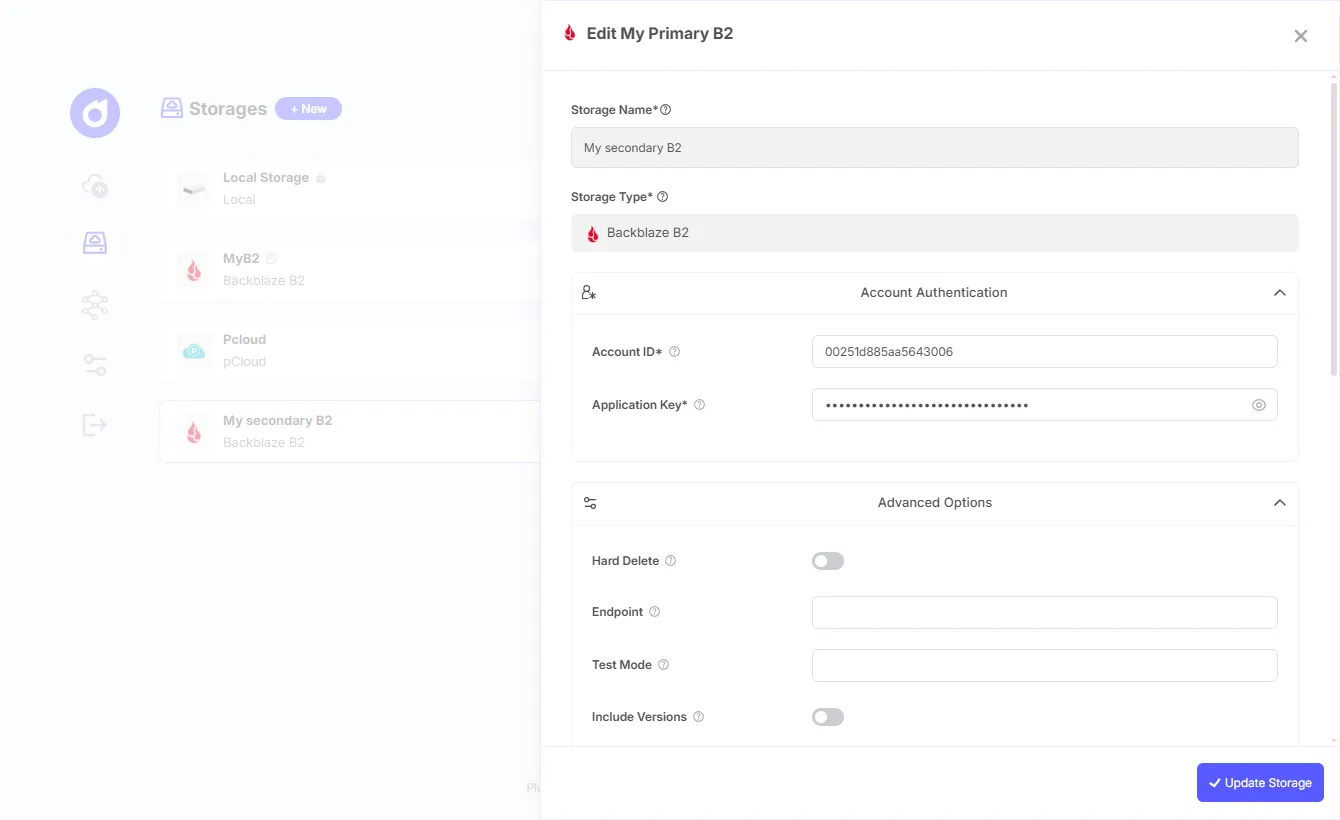
Connecting a storage destination on Pluton’s Storages page.
2. Create a Backup Plan
-
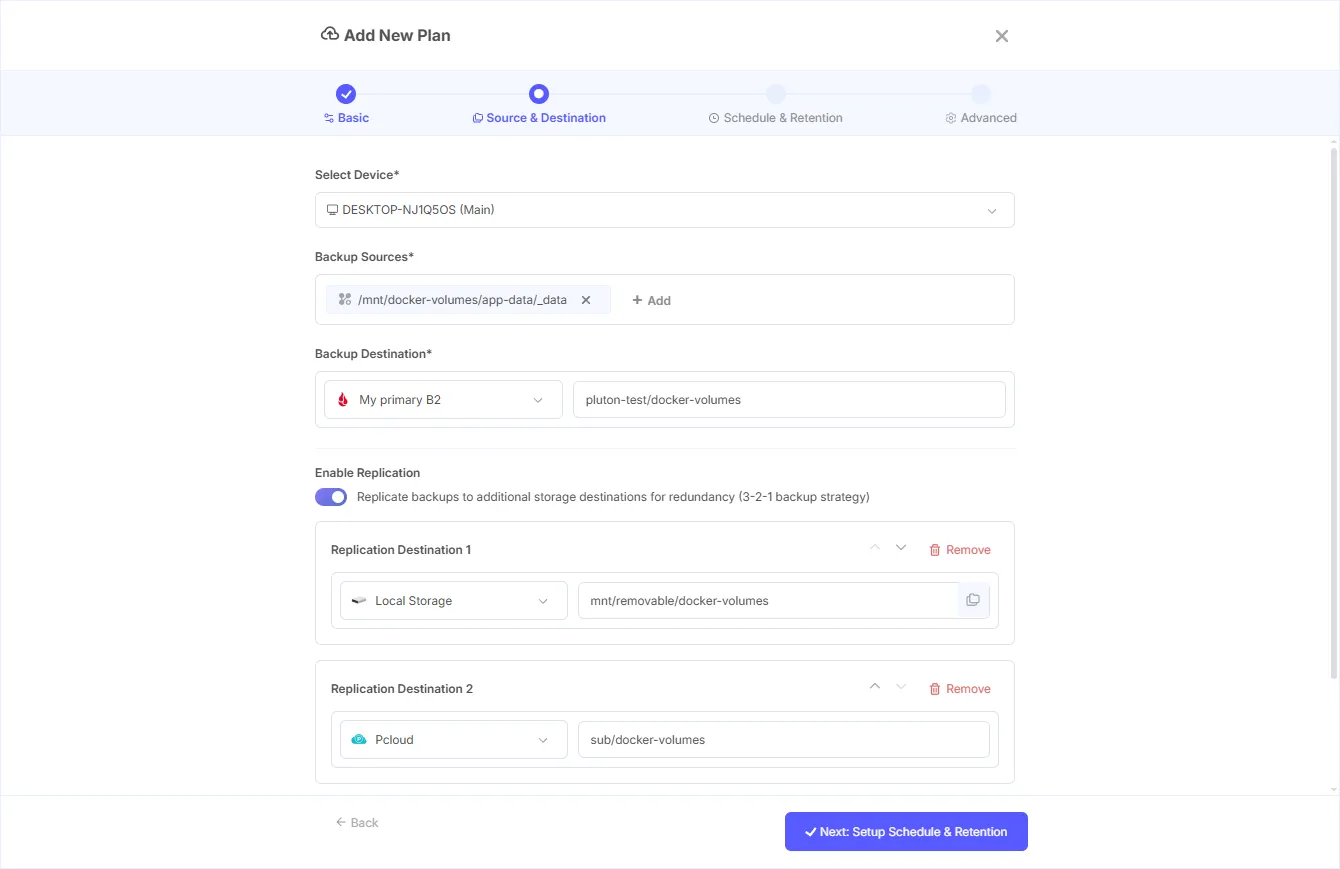
Give your Backup Plan a name.
-
Then, point it at the volume you want, for example
/mnt/docker-volumes/app-data/_data.
-
Enable Replication (Optional): Mirror the same backup to a second storage, which gets you the 3-2-1 rule without manual juggling.
-
Set a Daily at 2 a.m. is a sane schedule for the backup to run and Choose how many snapshots to keep.
-
Turn On Encryption and Compression from the Advanced Setting panel. When this is enabled, the data is encrypted on your device before it ever leaves, so plaintext never touches the network or your storage provider.
-
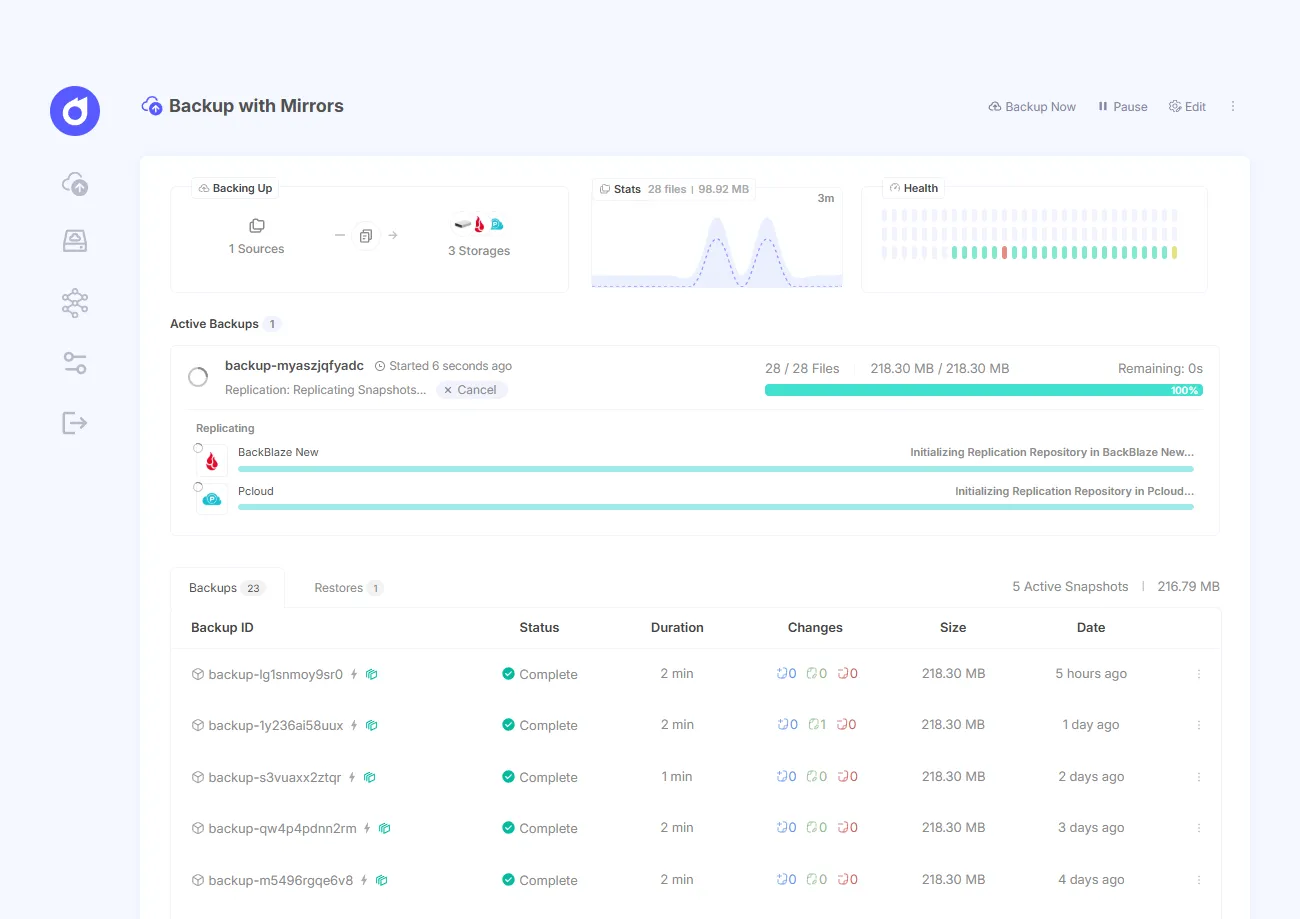
Finally, once you create the plan, run the initial backup plan.
Worked Example: Backing Up Self-Hosted Immich Volumes
Immich is the worked example worth getting right, because it just crossed 90,000 GitHub stars and shipped its v2.0.0 stable release in October 2025, which finally removed the project’s own warning that it wasn’t suitable for storing irreplaceable photos (Immich on GitHub, 2026). People are now trusting it with the only copy of their family memories. That makes a tested backup non-negotiable.
Immich is trickier than a single volume because its data lives in two places:
- The upload library (your actual photos and videos, thumbnails, and encoded video), set by
UPLOAD_LOCATION. - A PostgreSQL database (albums, faces, metadata, machine-learning data), which Immich stores in a Docker volume, commonly named something like
immich_pg_data.
Here’s the gotcha that bites people: copying the raw PostgreSQL volume files while the database is running can produce a corrupt, unrestorable backup. The database needs a consistent dump, not a live file copy. Good news is that Immich now writes automatic database dumps into the upload folder under UPLOAD_LOCATION/backups/, so if you back up the upload location, you usually capture the database dump along with it (Immich docs, Backup and Restore, 2026).
So the reliable plan has two parts. First, mount both locations into Pluton read-only:
volumes:
  - pluton-data:/data
  # Immich Postgres volume (raw, as a fallback):
  - /var/lib/docker/volumes/immich_pg_data/_data:/mnt/immich-db:ro
  # Immich upload library (photos + Immich's own DB dumps):
  - /path/to/immich/library:/mnt/immich-library:ro
Second, in Pluton create one backup plan that includes both /mnt/immich-library and /mnt/immich-db, schedule it daily, enable encryption, and replicate it to an off-site storage like Backblaze B2.
Belt and suspenders: For a guaranteed-consistent database snapshot, dump it yourself before the backup runs with
docker exec -t immich_postgres pg_dumpall --clean --if-exists -U postgres > /path/to/immich/library/backups/dump.sql. Because that file lands inside the upload library, Pluton’s plan picks it up automatically. Now you’re capturing photos and a clean database in one job.
Our finding from the Pluton support inbox: the database is the single most common thing Immich self-hosters forget to back up. They copy the photo folder, feel safe, and only discover at restore time that every album, face tag, and shared link lived in a database they never captured. Don’t be that person. Back up both.
How Do You Restore a Docker Volume From a Backup?
You restore a Docker volume by extracting your backup archive back into a fresh volume, or in Pluton, by running the guided restore wizard and pointing it at a snapshot. This step matters more than the backup itself: industry data shows only 61% of restores actually succeed (CrashPlan, 75+ Data Loss Statistics, 2026, 2026). A backup you’ve never test-restored is a guess, not a safety net.
With Pluton, restoring is a four-step wizard: pick the snapshot, choose original or custom location, set the overwrite behavior, and confirm. You can restore a whole snapshot or browse the file tree and pull back a single photo. You can even download the snapshot as a TAR archive straight from the UI (Pluton docs, 2026).
For the manual tar method, restoring into a new volume looks like this:
docker volume create app-data-restored
docker run --rm \
  -v app-data-restored:/volume \
  -v "$(pwd):/backup" \
  alpine \
sh -c "cd /volume && tar xzf /backup/app-data-20260608.tar.gz"Whichever method you use, restore into a new volume or a custom path first. Verify the app comes up and the data’s intact before you overwrite anything live.
Get Your Docker Volumes Backed Up in Under 5 Minutes
You’ve seen the manual tar way and the durable automated way. If you want scheduled, encrypted, off-site backups of every Docker volume on your host, with an alert the moment one fails, Pluton’s free open-source edition does it without a single line of restic. No credit card, no signup wall.
Spin it up with the Compose file above, mount /var/lib/docker/volumes read-only, and create your first plan. Pluton is lightweight enough to run on a Raspberry Pi at around 50 MB of RAM, so it won’t fight your other containers for resources.
Get the free, open-source edition of Pluton → and back up your first Docker volume today.
Frequently Asked Questions
Can you back up a Docker volume without stopping the container?
For most file-based apps, yes, since Docker volumes can be read while mounted. But databases (PostgreSQL, MySQL) need a consistent dump to avoid corruption. In 2026, audits show only 57% of backups succeed, and live database copies are a top cause (CrashPlan, 2026). Use a dump command or a pre-backup script for any database volume.
Where are Docker volumes stored on the host?
Named Docker volumes are stored at /var/lib/docker/volumes/<volume-name>/_data on Linux hosts. Because Docker reached 71% developer adoption in 2025, this path is where a huge share of self-hosted data now lives (Stack Overflow, 2025). Mounting it read-only is how tools like Pluton back volumes up.
How do I back up Immich running in Docker?
Back up two things: the upload library set by UPLOAD_LOCATION and a consistent PostgreSQL dump. Immich, which passed 90,000 GitHub stars by 2026, now writes automatic database dumps into UPLOAD_LOCATION/backups/ (Immich on GitHub, 2026), so backing up that folder captures both photos and the database in one pass.
Is docker compose down -v dangerous?
Yes. The -v flag deletes the named and anonymous volumes declared in your Compose file, permanently and with no recycle bin. Given Docker’s 71% adoption in 2025, this is one of the most common ways self-hosters lose data (Stack Overflow, 2025). Always keep an off-site backup before tearing a stack down.
Final Thoughts
Docker makes your apps disposable and your data fragile in the same move. The volume that holds your database is one careless command away from gone, and as we’ve seen, only a minority of untested backups actually restore cleanly. So the answer isn’t a clever tar script you’ll forget to run. It’s an automated, encrypted, off-site backup that tells you when it breaks.
Start with one volume. Mount it into Pluton, schedule a daily job, replicate it off-site, and then, this is the part nobody does, test the restore. Once you’ve watched your data come back, you’ll never run a self-hosted app without it again.
Sources
- Stack Overflow, 2025 Developer Survey (Technology), retrieved 2026-06-08, https://survey.stackoverflow.co/2025/technology
- Immich, immich-app/immich repository, retrieved 2026-06-08, https://github.com/immich-app/immich
- Immich, Backup and Restore documentation, retrieved 2026-06-08, https://immich.app/docs/administration/backup-and-restore/
- CrashPlan, 75+ Data Loss Statistics for 2026: The Complete Guide, retrieved 2026-06-08, https://www.crashplan.com/blog/75-data-loss-statistics-for-2026-the-complete-guide/
- Pluton, Official Website, retrieved 2026-06-08, https://usepluton.com
- Pluton, Official Documentation, retrieved 2026-06-08, https://docs.usepluton.com